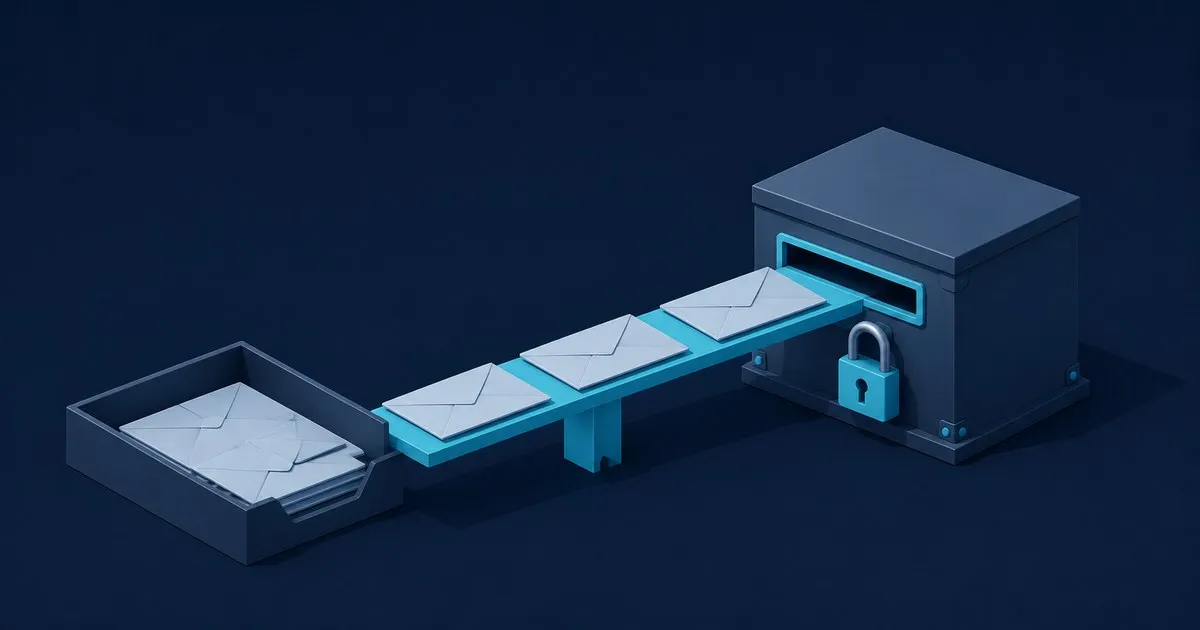
Here is how to migrate from Gmail to Proton Mail safely: secure both accounts, use Proton’s Easy Switch to copy your data, keep Gmail connected during account updates, verify the transfer, and then revoke access. Budget about 10 minutes for setup; a large mailbox can keep importing much longer. For the provider-agnostic version of this move, including Tuta as an alternative destination, see how to migrate from Gmail to encrypted email.
Threat model: who this migration helps
This guide fits consumers reducing a provider’s access to stored message content and moving away from a Google-centered identity. Proton stores imported message bodies and attachments with zero-access encryption, while mail between Proton users is end-to-end encrypted (E2EE). It improves mailbox privacy, not anonymity; whether Proton Mail is really private covers what that does and does not change.
Pause if an ex-partner or anyone else may know your Gmail password, control your recovery phone, or have an unlocked device session. First change the Google password, review signed-in devices, and enable strong two-factor authentication. A Proton connection does not remove an intruder from Gmail.
Do not choose this migration primarily for an ISP or public-Wi-Fi threat model; its benefit is provider-side mailbox storage, not a private network tunnel. It also does not conceal normal email metadata, secure an infected device, or stop phishing. If an AI assistant has inbox access, review that third-party connection too. EFF’s practical starting point is to identify the data and adversary that matter to you, rather than expect one tool to solve every problem (EFF Surveillance Self-Defense).
Before you start
-
Harden the new account. Give Proton a unique password, then enable TOTP or a FIDO2/U2F security key under Settings → All settings → Account and password → Two-factor authentication. Save the recovery codes. Proton also offers a recovery phrase that can restore encrypted data; keep it somewhere reachable without logging into Proton.
-
Make an independent backup. Use Google Takeout to request a Gmail archive and, if needed, Contacts and Calendar data. Takeout copies data; it does not delete the originals. Store the downloaded archive somewhere other than Google Drive if you may later delete the Google account.
-
Inventory Google-linked logins. Moving messages does not change accounts that use Sign in with Google. Review Google’s third-party connections page, then change the login and recovery address for your password manager, bank, healthcare portal, utilities, government services, shopping accounts, and social networks.
Version note: this guide follows Proton Mail’s web interface documentation checked August 28, 2026. Proton’s support page does not identify a numbered web release for this flow.
The 10-minute Easy Switch setup
-
Sign in at
mail.proton.me. Open Settings → All settings → Import via Easy Switch, select Google, then choose Connect to Gmail. Proton’s Gmail migration documentation describes this as the recommended personal-account setup because it imports existing data and receives future Gmail messages during the transition. -
In Google’s OAuth window, confirm that the displayed Gmail address is the one you intend to move. Select all requested permissions and press Continue. Screen checkpoint: the final Proton panel should show the Gmail address as connected and an import in progress, not another Google account saved in your browser.
-
Let the initial import run. Proton says the connection initially takes recent Gmail messages up to 80% of available Proton storage. After it completes, open More import options → Google to choose a separate import of Emails, Contacts, and Calendars, including more or all mail history. Customize the mail range, included folders, destination label, and calendar merge before selecting Start import.
-
Leave Gmail intact while the job runs. Easy Switch works in the background. A repeated import should skip messages already copied, but Proton also skips spam and trash. Check Import via Easy Switch → History for completion and any import report.
Gmail labels do not map perfectly. Proton flattens nested labels and supports only three folder levels. Same-named folders merge, while a Gmail label that conflicts with an existing Proton folder must be renamed. Its Easy Switch troubleshooting page also warns that a Gmail connection receives only messages that reach the Inbox. A Gmail filter set to Skip the Inbox can therefore hide new mail from Proton. Read, starred, and moved states do not sync back and forth.
Move your identity, not just your archive
Use the temporary Gmail connection as a catch net while you replace the old address. Start with accounts that can reset other accounts: your password manager, Apple or Google recovery settings, financial and health services, mobile carrier, and primary shopping account. Then update subscriptions and ordinary contacts. Ask calendar organizers to send new invitations to the Proton address because Google Calendar import is a one-time copy, not ongoing calendar synchronization.
Do not delete Gmail merely because the import screen says complete. Keep the old account secured until expected senders are using Proton, critical logins have been changed, and your independent archive opens correctly.
Verify it worked
Run these checks yourself before disconnecting anything:
- In Proton, search for an old message by a distinctive subject, open its attachment, and check examples from Inbox, Sent, and a custom Gmail label. Review the import report for failed items rather than comparing storage totals, which can differ after compression, encryption, and skipped duplicates.
- From another account you control, send a message to the old Gmail address. Confirm it arrives in Proton. If it does not, inspect Gmail filters for Skip the Inbox.
- Send from the new Proton address to an account you control and reply. Then send Proton-to-Proton if available and inspect Proton’s lock indicator. Proton documents that Proton-to-Proton mail is E2EE; mail to a non-Proton recipient normally uses TLS in transit and that recipient’s provider may access its copy (Proton encryption explainer).
- Open several imported contacts and past calendar events. Create a fresh invitation addressed directly to Proton to confirm the new route.
Disconnect Gmail cleanly
Once the checks pass, go to Proton Settings → All settings → Import via Easy Switch and remove the Gmail connection. In your Google Account, review connected third-party apps and remove Proton’s access if it remains. Disable any separate Gmail forwarding rule too; running legacy forwarding beside the Proton Gmail connection can create duplicates.
Keeping a locked-down Gmail account as a legacy recovery address is reasonable. Deletion is optional and should come only after the Takeout archive, critical account changes, and incoming-mail checks are complete.
The catch
Easy Switch does not retroactively make a Gmail conversation E2EE. The imported copy is encrypted when it reaches Proton, but inbound Gmail remains copied at Google and correspondents may retain their copies. Mail sent from a connected Gmail address to non-Proton users travels through Gmail, is not E2EE, and appears in Gmail Sent. Proton also states that subject lines and addressing fields are not end-to-end encrypted. The strongest gain is less provider access to the copy stored at Proton and automatic E2EE with other Proton users, not universal secrecy or protection from a compromised device. If you would rather harden Gmail than leave it, how to encrypt email in Gmail covers the options a personal Gmail account actually has.


